Try a few activities
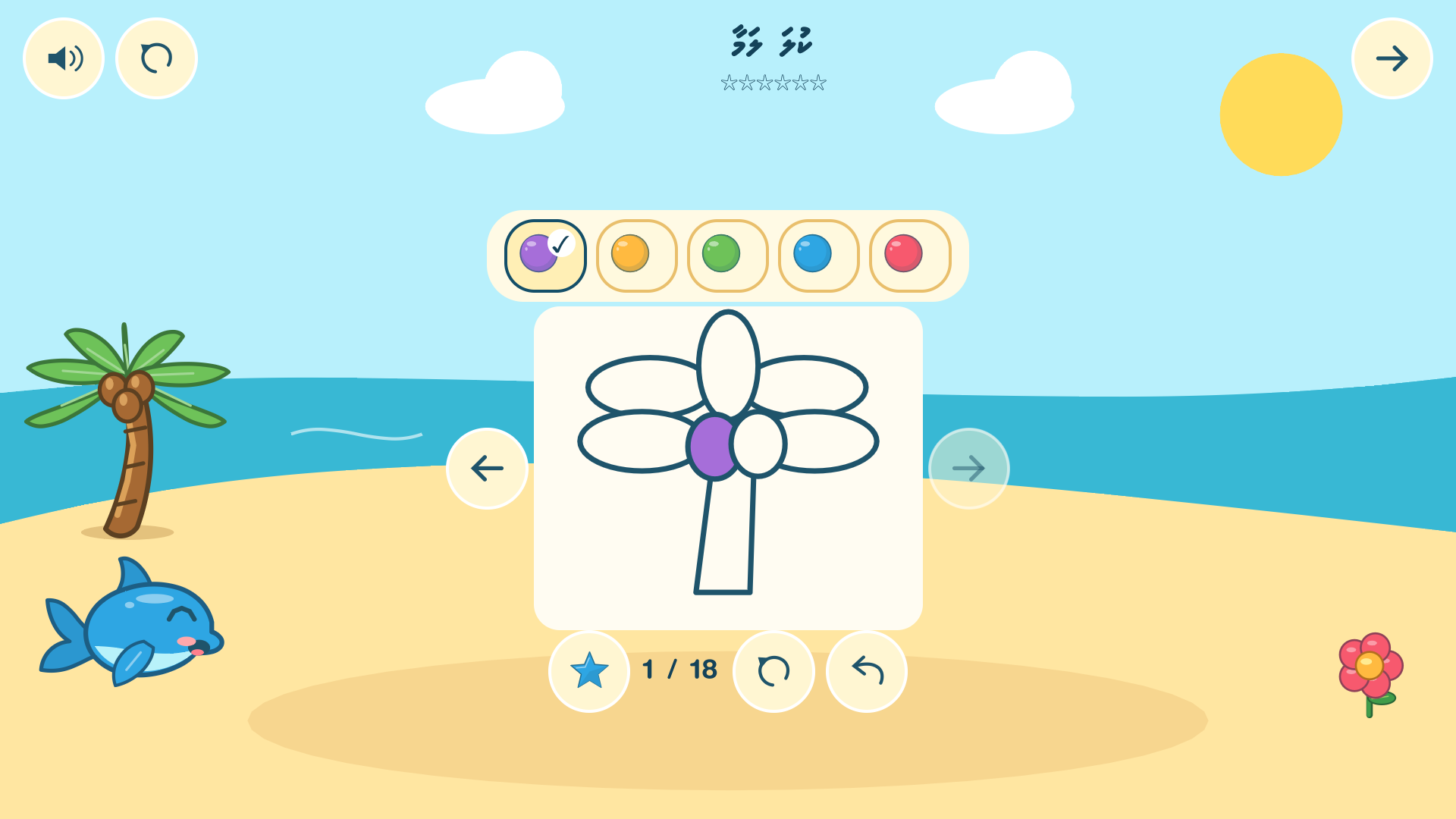
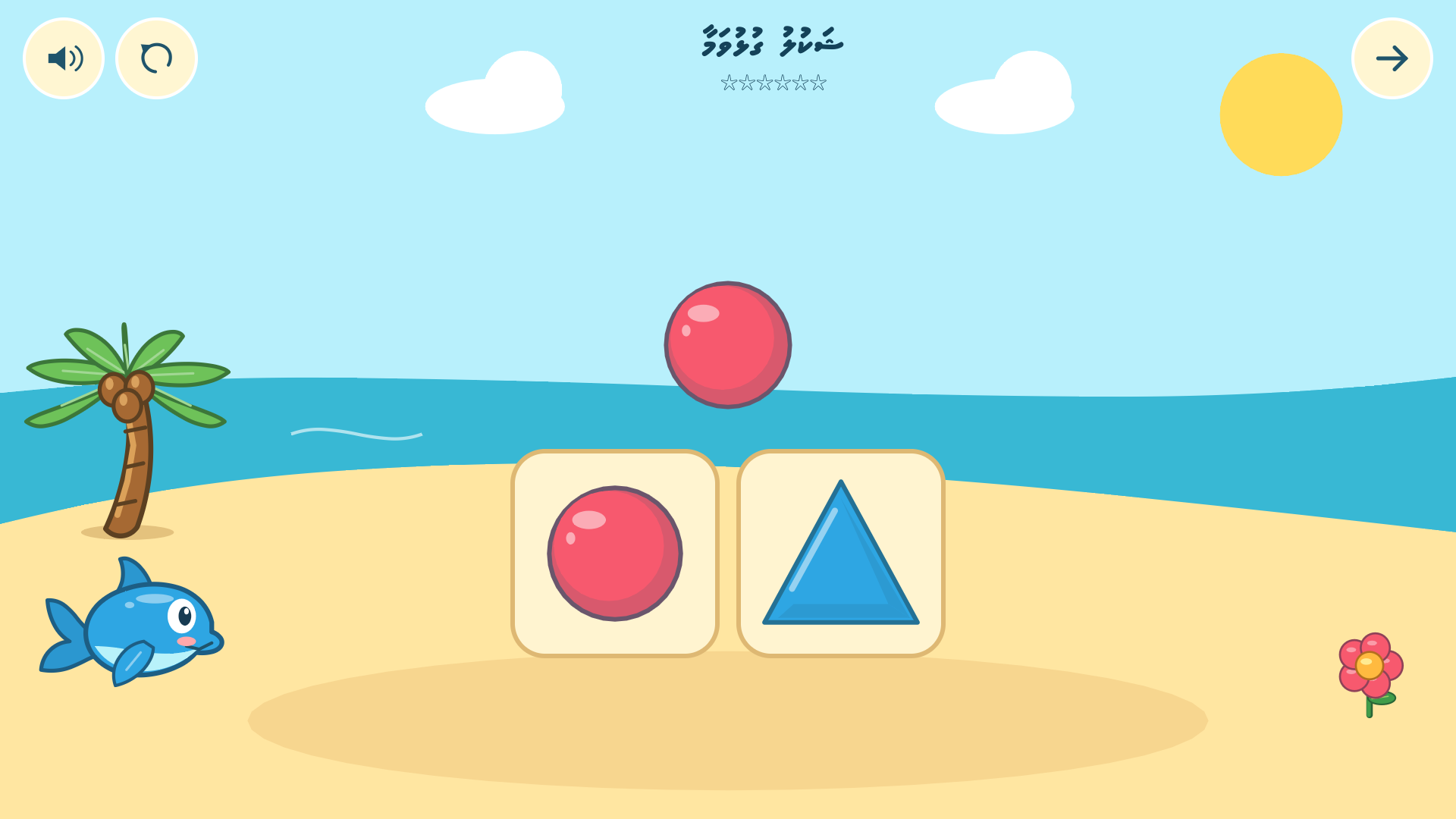
Play with letters, words, counting, shapes and stickers. Listen to the Dhivehi voices and try both tapping and dragging.
 Dhivehi KidsLearn a little. Play a lot.
A playful way for little learners to discover Dhivehi. Follow a few simple steps to try the game and help us make it better.
Setup is for parents and adult testers, aged 18+.
Choose the device you’ll play on, even if you’re reading this on a computer.
Already applied or joined? There’s no separate application to wait for. Open your device guide and continue from the step you’ve reached.
Use the same Google account for all three steps. This should be the adult account signed in to Google Play on your phone. You don’t need TestFlight on Android.
Open Google Groups, sign in, and choose Join group. If Google asks for membership settings, follow its prompts to finish joining.
Join Google Group ↗Already a member? You can go straight to step 2. No approval email is required.
Open the test invitation with that same Google account. Tap Become a tester. When the page confirms you’re a tester, continue below.
 Join the Play test ↗
Check the account shown in Google Groups and Google Play. They must match. Finish joining the group first, then give access time to update and reopen this link. If it still fails, use the help section below.
On your Android phone, open the store page and tap Install, then Play or Open. If it’s already installed, tap Update when available.

You may still see the previous name, “Dhivehi Dhas Kuramaa,” while the rename is rolling out. It’s the same game.
Try a few activities together, then see what to test and how to send feedback.
What is TestFlight? It’s Apple’s free app for installing test versions of games. You’ll install TestFlight once, then use our invitation to add Dhivehi Kids.
Open this link on your iPhone or iPad. In the App Store, tap Get or the download icon. Open TestFlight and follow the first-time setup prompts.

Already have TestFlight? Skip to step 2. The App Store will show whether your device is compatible.
Return to this page and tap the button below on your iPhone or iPad. Choose View in TestFlight or Start Testing if shown, then Accept.
 Join Dhivehi Kids in TestFlight ↗
You don’t need a code for our public invitation. Return here and open the invitation button above on your iPhone or iPad. Installing TestFlight alone doesn’t add the game.
Inside TestFlight, find Dhivehi Kids and tap Install. Once it finishes, tap Open. You can also open the game from your Home Screen.
Returning tester? Tap Update instead. Keep TestFlight installed to receive future game updates.
Try a few activities together, then see what to test and how to send feedback.
Open sabyh.site/testers in your phone’s browser, then choose your device. Your checklist is saved separately on each device.
Play with letters, words, counting, shapes and stickers. Listen to the Dhivehi voices and try both tapping and dragging.
iPhone: Open the game’s page in TestFlight and turn on Automatic Updates.
Android: Open its Google Play page and enable auto-update in the menu, if available. You can also tap Update manually.
Share the activity, what you tapped, what you expected, and what happened. Include your device and app version. Please avoid children’s names or photos.
Email feedback ↗On iPhone, you can also use Send Beta Feedback in TestFlight.
Android testers: please stay opted in for at least 14 continuous days and try the game when you can. Honest feedback helps; there is no requirement to leave a positive review.
There’s no separate application form or manual invitation to wait for. On Android, joining the Google Group is only step 1: you still need to join the Play test and install. On iPhone or iPad, install TestFlight, open our public invitation, then install the game. Use the checkboxes above to keep your place.
TestFlight and Dhivehi Kids are two different apps. After installing TestFlight, return to the iPhone guide and open the invitation in step 2. No redeem code or Google Group is needed.
Test availability can change while Apple or Google reviews a release or if the group is full. Try again later. If the same message remains, email us the exact message and your device type. Don’t send your password or sign-in code.
Updates appear after the store approves them and may take time to reach your device. Check the game in TestFlight or Google Play and tap Update when it appears. You can keep playing an available older build. TestFlight builds expire after 90 days, so update before expiry.
For this test, use the links on this page. iPhone and iPad installs are through TestFlight. Android access uses our Google Group and Play test invitation before the store download.
On Android, open the Play test invitation and choose Leave the program; you can also leave the Google Group. On iPhone, open the game in TestFlight and choose Stop Testing. Uninstalling the game may remove locally saved progress.
Still stuck? Email us for help. Tell us which step you reached and the message you see.
Official guidance: Apple TestFlight help · Google Play testing help